
In the field of automotive electronic diagnostics, DTC (Diagnostic Trouble Code) serves as the primary clue for ECUs to locate faults. The DTC Analysis module in TSMaster supports automatic parsing of DTC lists from PDX, ODX, and Excel diagnostic databases, equipped with robust search and filtering capabilities to help engineers quickly pinpoint fault scopes. This quick start guide will help you easily master DTC Analysis.
Keywords: DTC Analysis, UDS Diagnostics, Diagnostic Trouble Code Table, Diagnostic Database, $19 Service
Table of Contents
1. Overview of TSMaster DTC Analysis
The DTC Analysis module rapidly parses DTC lists from PDX, ODX, and Excel diagnostic databases through the diagnostic module. It enables reading ECU Diagnostic Trouble Code lists (DTC), reading Freeze Frame / Snapshot data, and reading DTC Extended Data Records. It features automatic parsing, searching, and filtering of DTC lists, supports copying DTC codes and raw messages, and supports exporting to CSV and JSON formats. An overview of the DTC Analysis module is shown in Figure 1.
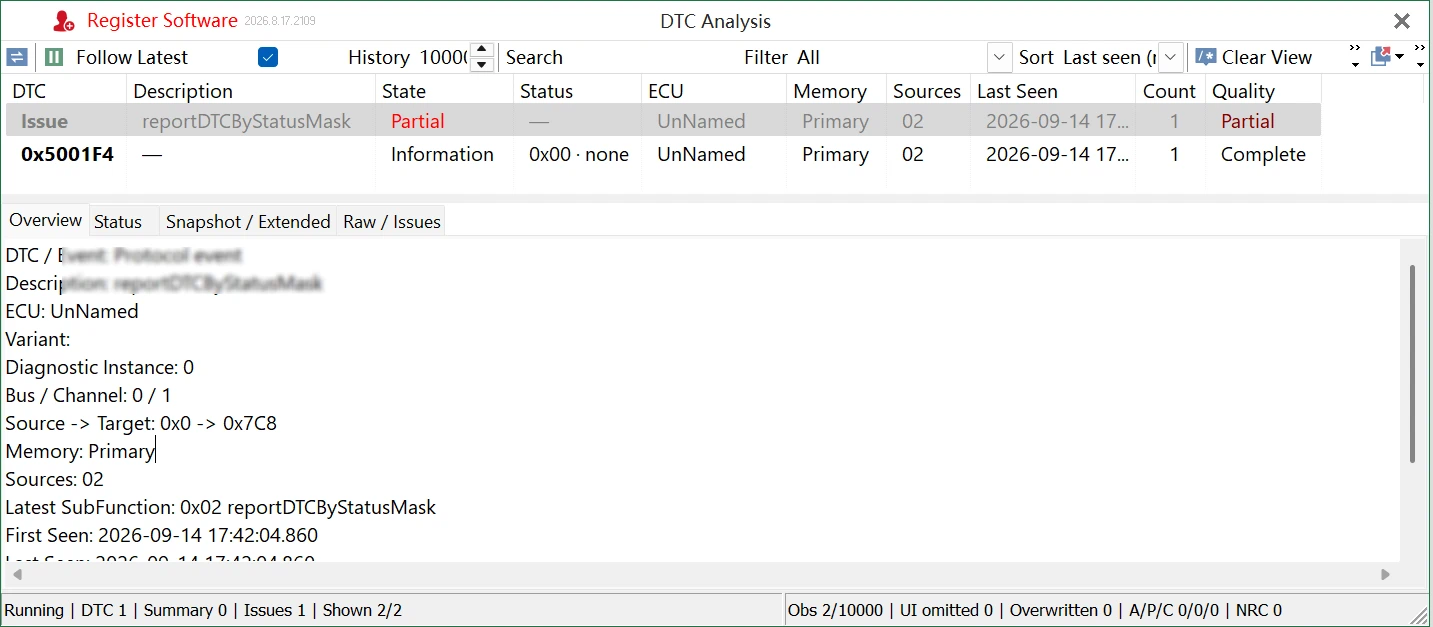
1.1 DTC Analysis Toolbar
The DTC toolbar is displayed at the top of the window. Clicking a corresponding icon executes the action and updates the DTC list accordingly. The toolbar buttons are described as follows:
 Reload: Reloads DTC, Snapshot, and Extended Data definitions, and re-projects cached observation records.
- Resume/Pause View Refresh: Resumes view refreshing to update the DTC list, displaying “Running” in the bottom-left corner; pauses view refreshing, causing the list to stop updating while background acquisition continues.
- Follow Latest: When enabled, the DTC list automatically reads DTCs periodically during execution, tracking changes in the ECU fault memory in real time.
- History: The default value is 10,000. Configurable range: 100 to 500,000. Values entered below 100 are automatically corrected to 100. Once the set capacity is reached, a fixed-capacity ring buffer is used to overwrite the oldest observation records. The number of overwritten records is calculated and displayed via the [Overwritten] field in the bottom status bar. In actual practice, the maximum number of displayed DTC rows in the list is 1,000, which is an intentional frontend display limit by design.
- Search: Allows searching for DTC hexadecimal values, descriptions, ECU contexts, sub-function issues, or raw message keywords. Press Enter to confirm the search.
- Filter: Supports All, Active, Inactive, Failed this operation cycle (TFTOC), Stored preset, Pending, Confirmed, Test not completed since last clear (TNCSLC), Failed Since Last Clear, Test Not Completed This Operation Cycle (TNCTOC), WIR, and Issue Type.
- Sort: Supports Last Seen (Oldest), Last Seen (Newest), First Seen, DTC, Context, Occurrence Count, and Parse Quality.
- Clear View: Clears only the DTC Analysis cache without sending a UDS 0x14 request.
- Copy: Copies the currently selected DTC observation record. It copies the text information of the DTC status. After selecting a record in the DTC observation list, right-clicking provides options to [Copy DTC Code], [Copy Raw Payload], and [Copy ECU Context].
- Export CSV: Exports the current filtered results as a UTF-8 BOM CSV text file.
- Export JSON: Exports the current filtered results as a UTF-8 BOM JSON file. It exports the complete “aggregated snapshot” DTC records under the current search, filter, and sort conditions, and is not restricted by the 1,000-row display limit of the DTC list. Each JSON object currently contains:
- First and last seen time;
- ECU/Bus context;
- DTC code and description;
- Status text, status byte, Availability Mask;
- Source sub-function collection;
- Count;
- Parsing quality, issue information;
- NRC, FDC;
- Raw Payload.
 Reload: Reloads DTC, Snapshot, and Extended Data definitions, and re-projects cached observation records.
 Resume/Pause View Refresh: Resumes view refreshing to update the DTC list, displaying “Running” in the bottom-left corner; pauses view refreshing, causing the list to stop updating while background acquisition continues.
 Follow Latest: When enabled, the DTC list automatically reads DTCs periodically during execution, tracking changes in the ECU fault memory in real time.
 Clear View: Clears only the DTC Analysis cache without sending a UDS 0x14 request.
 Copy: Copies the currently selected DTC observation record. It copies the text information of the DTC status. After selecting a record in the DTC observation list, right-clicking provides options to [Copy DTC Code], [Copy Raw Payload], and [Copy ECU Context].
 Export CSV: Exports the current filtered results as a UTF-8 BOM CSV text file.
 Export JSON: Exports the current filtered results as a UTF-8 BOM JSON file. It exports the complete “aggregated snapshot” DTC records under the current search, filter, and sort conditions, and is not restricted by the 1,000-row display limit of the DTC list. Each JSON object currently contains:
The exported JSON file can be applied in the following scenarios:
- Attachment for automated diagnostic test results;
- Reading DTC codes, status, count, and parsing quality by CI/CD or test scripts;
- Comparing DTC set differences before and after testing or software versions;
- Providing machine-readable evidence along with Raw Payload during issue reproduction;
- Importing into internal reporting systems, data analysis scripts, or quality platforms;
- Performing offline statistics on multi-ECU and multi-channel DTC results;
- Conducting batch auditing on issue events such as parsing failures, unknown sub-functions, and NRCs.
1.2 DTC Analysis Details Panel
The DTC Analysis details panel consists of four tabs: Overview, Status, Snapshot / Extended, and Raw / Issues.
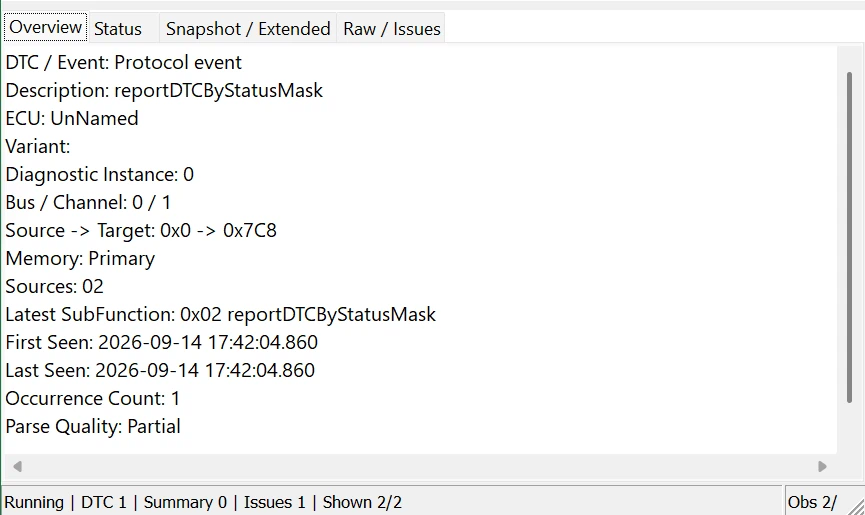
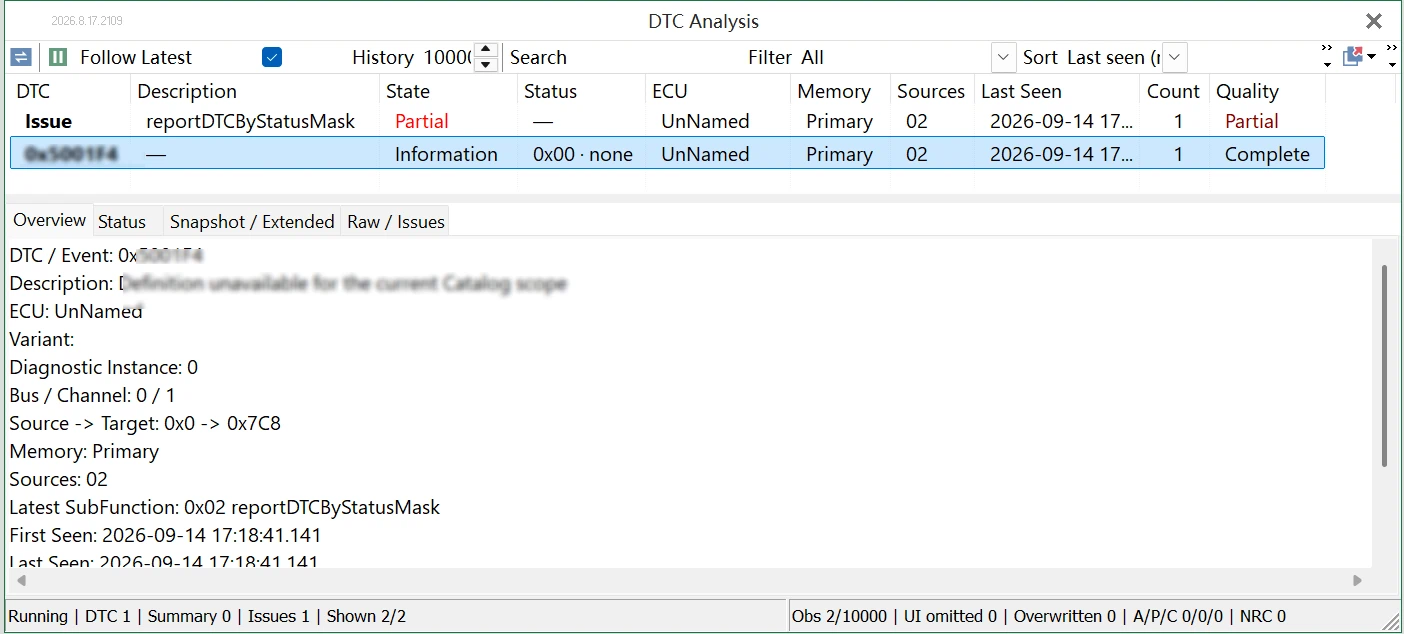
Overview: After selecting a DTC record, the Overview tab presents the corresponding DTC / Event diagnostic code, Description, ECU name (from the diagnostic database), Variant, Diagnostic Instance, Bus / Channel, Source -> Target address, fault Memory type, Sources, Latest SubFunction, First Seen, Last Seen, Occurrence Count, and Parse Quality, as shown in Figure 2.
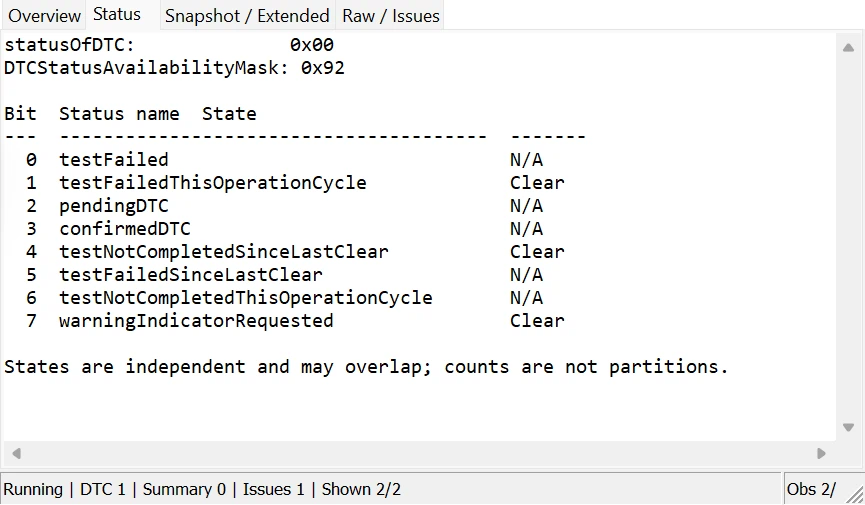
Status: Displays the statusOfDTC value and DTCStatusAvailabilityMask for the currently selected DTC. It performs bitwise parsing on the status byte to indicate whether each corresponding status is Clear or Set, as shown in Figure 3.
Snapshot / Extended: Automatically identifies the record type as Snapshot or Extended Data based on the response to the sent UDS 0x19 04 or 0x19 06. Based on the Snapshot or Extended Data definitions in the diagnostic database, it displays the corresponding identifier, name, value, unit, raw data, and metadata. Figure 4 shows Snapshot data reading.

Figure 5 shows Extended Data reading and parsing.

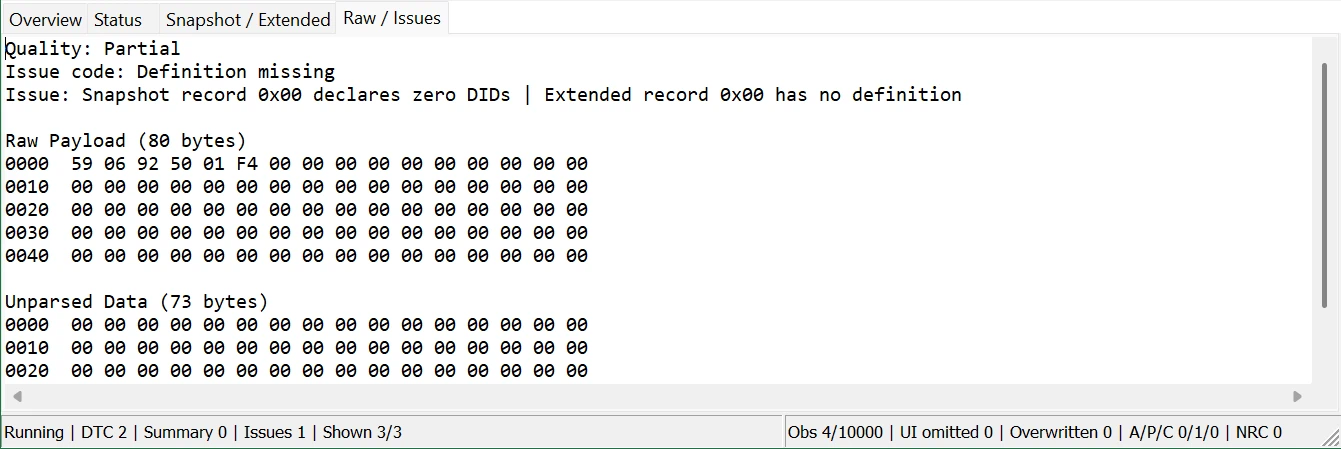
Raw / Issues: Displays parsing quality and issue codes, as well as the byte length and data parsing of the raw message, as shown in Figure 6.
2. User Guide for DTC Analysis
Prerequisite for using DTC Analysis: It relies on the DTC definitions, Snapshot, and Extended Data definitions in the diagnostic database, combined with the UDS 0x19 service of the TSMaster Diagnostic module to achieve ECU DTC parsing and viewing. Both the Basic Diagnostic module and the Database-based Diagnostic module can load diagnostic databases.
2.1 Basic Diagnostic Module: Diagnostic Database Loading
In the Basic Diagnostic module, adding DTC description files (Excel diagnostic database files or .ini files) is supported.
Loading path: Application → Diagnostic → Basic Diagnostic → Transport Layer (ISO TP) → DTC Description Files.
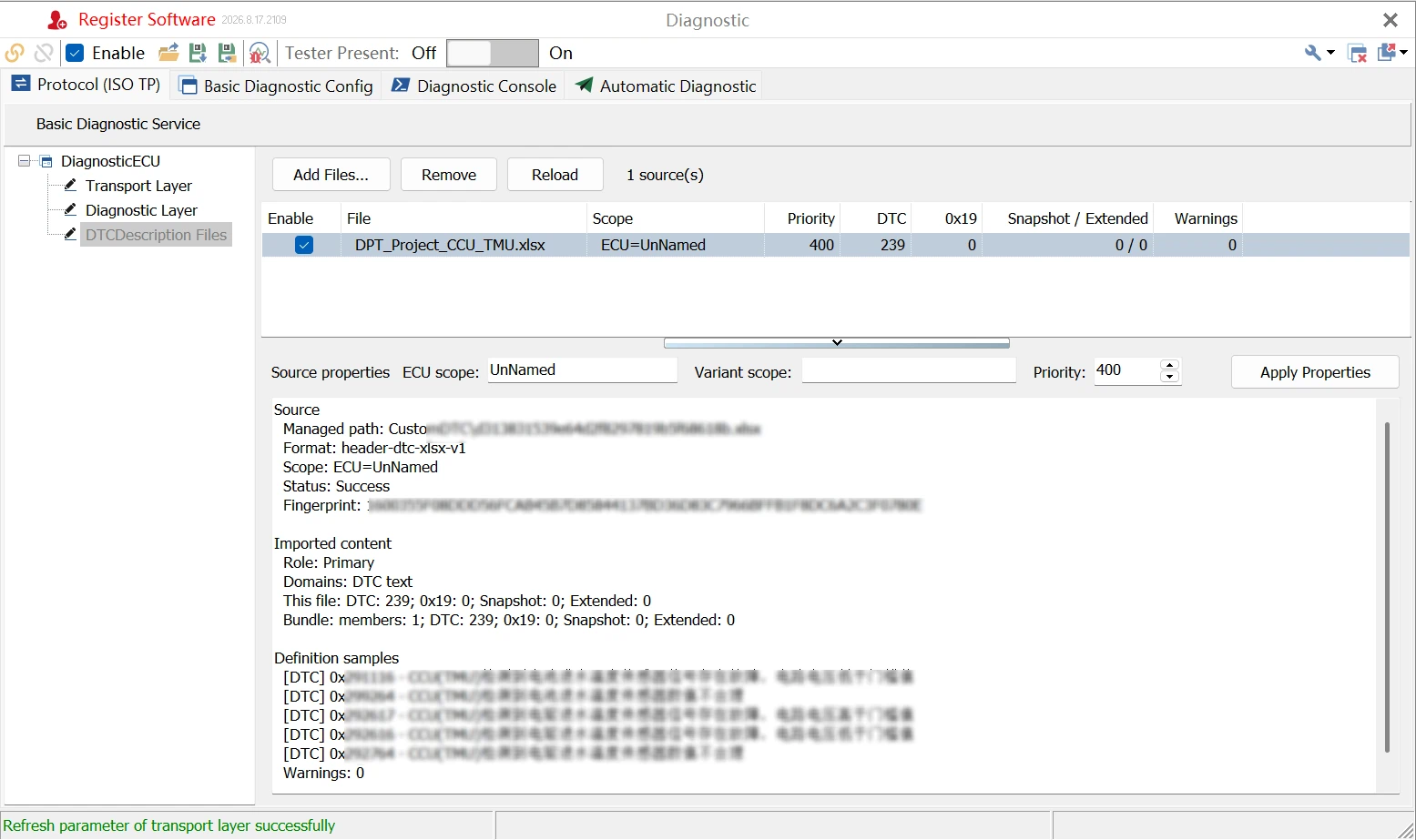
After loading an Excel diagnostic database file, you can view the number of DTC definitions, Snapshot/Extended Data definitions in the file, and modify the ECU scope, priority, etc., as shown in Figure 7.
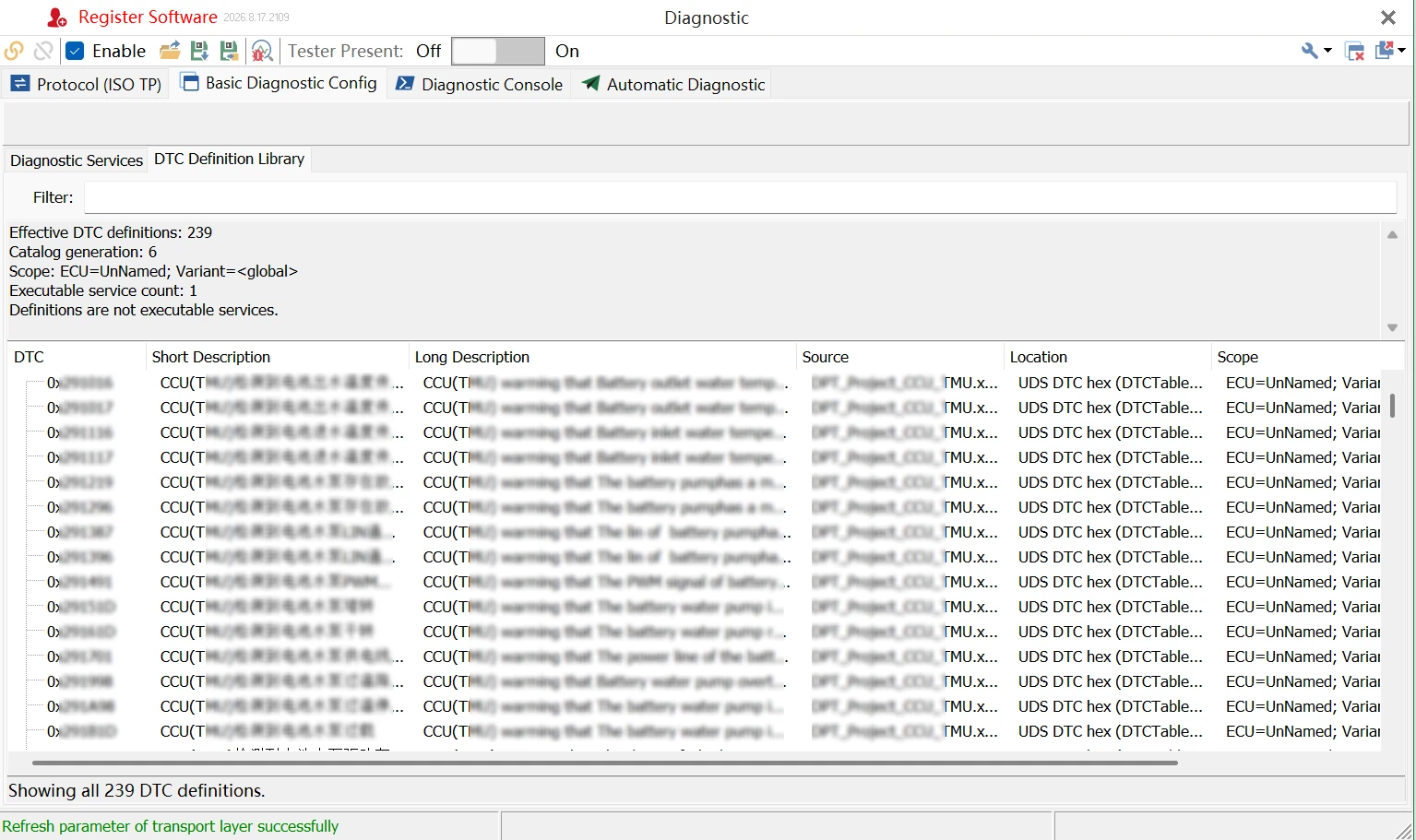
In the DTC Definition Library under Basic Diagnostic Config, all valid DTC definitions in the diagnostic database can be viewed. Note that DTC definitions are not executable diagnostic services, as shown in Figure 8.
Note: When loading Excel diagnostic database files, if you encounter unsupported formats or loading failures, you can contact TOSUN application support for further assistance regarding file format compatibility.
2.2 Database-Based Diagnostic Module: Diagnostic Database Loading
In the Database-based Diagnostic module, adding diagnostic database files in PDX/ODX and CDD formats is supported.
Loading path: Application → Diagnostic → DiagnosticDB → Transport Layer (ISO TP) → Diagnostic ECU Node.
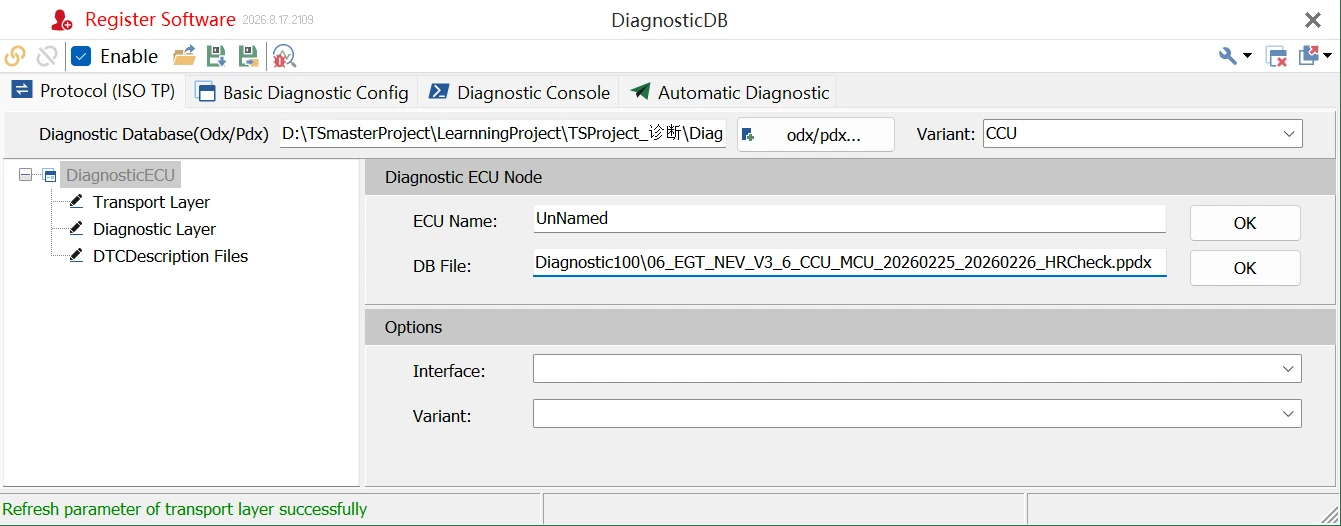
After loading the diagnostic database file, you can modify variables and ECU names, as shown in Figure 9.
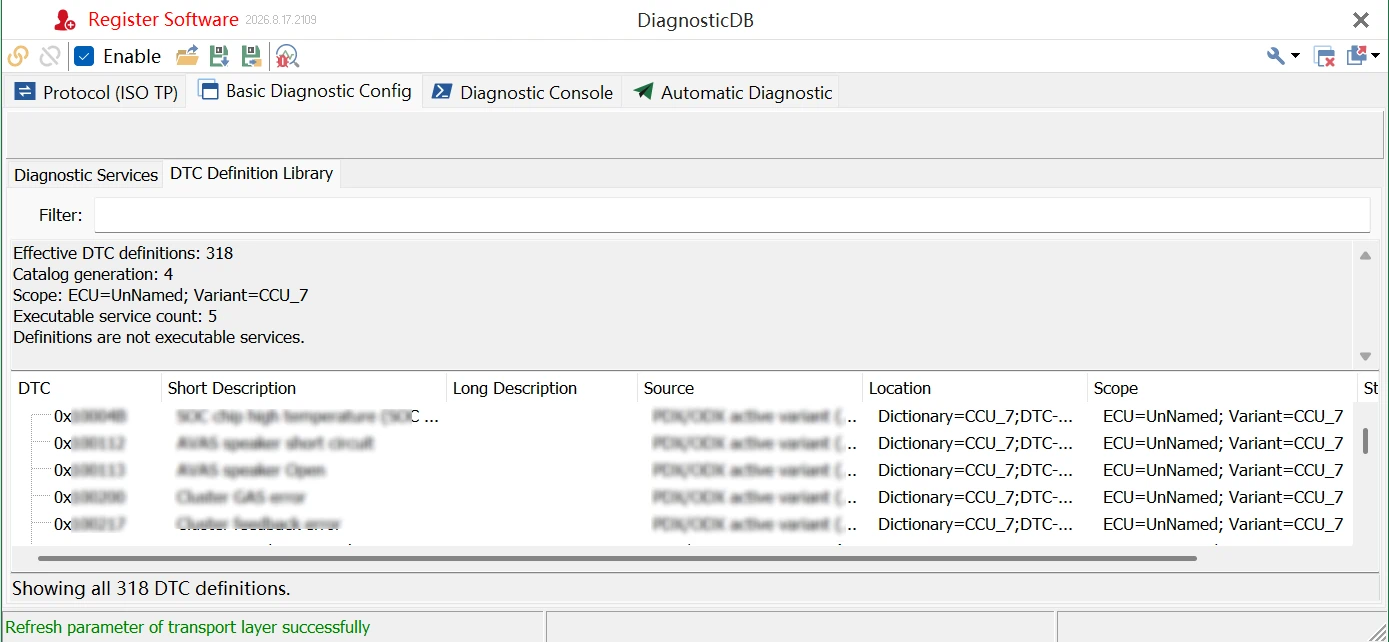
In the DTC Definition Library under Basic Diagnostic Config, all valid DTC definitions in the diagnostic database can likewise be viewed, as shown in Figure 10.
2.3 Reading DTC Information and DTC Analysis Automatic Parsing
After loading the diagnostic database in either the Basic Diagnostic module or the Database-based Diagnostic module, both diagnostic modules can send UDS 0x19 service requests to read DTC information.
2.3.1 Operations for Reading DTC Information in the Basic Diagnostic Module
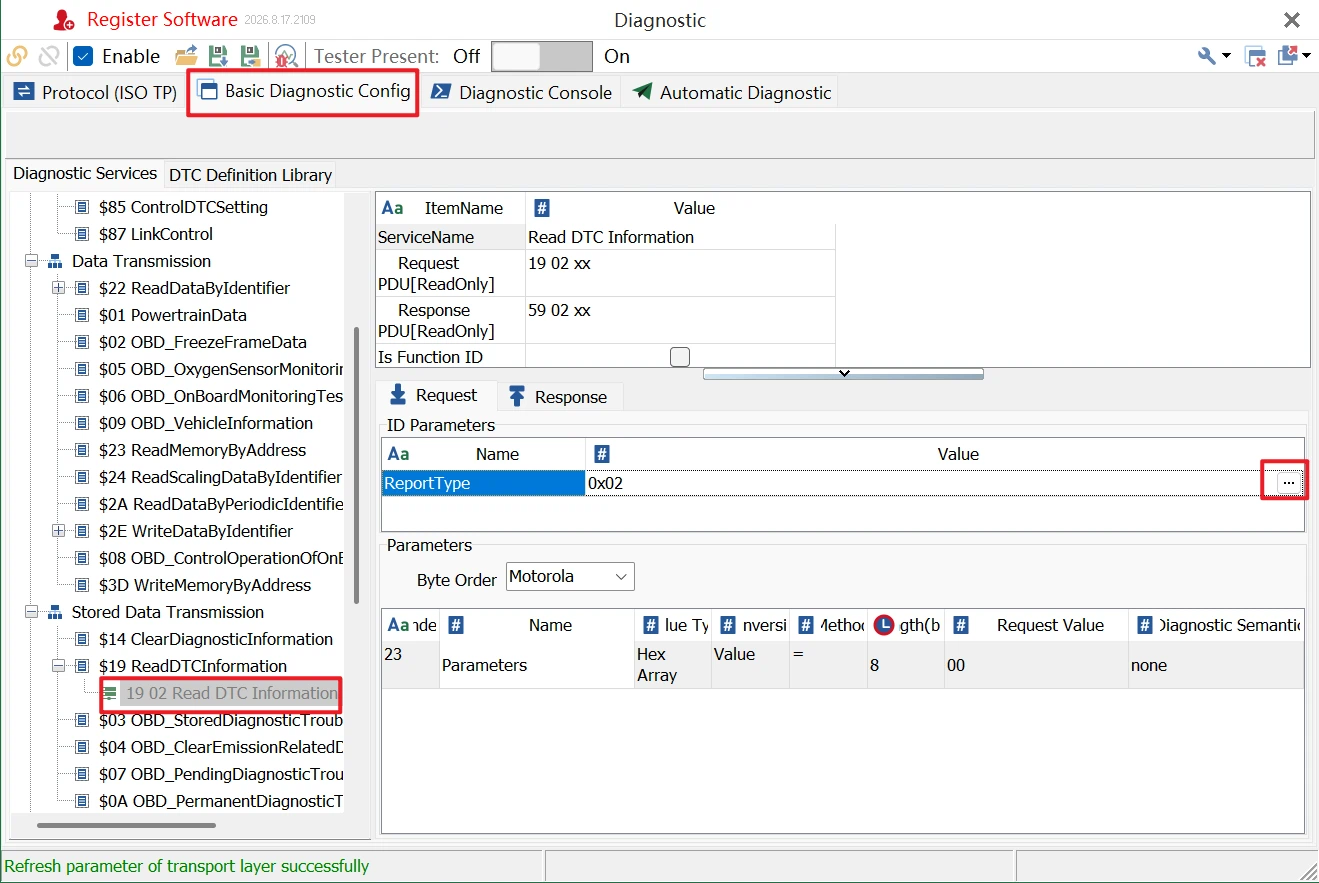
Operation path: Basic Diagnostic Config → Stored Data Transmission → $19 ReadDTCInformation.
Select $19 ReadDTCInformation, right-click to create a new $19 service, and configure request ID parameters in the right workspace, as shown in Figure 11.
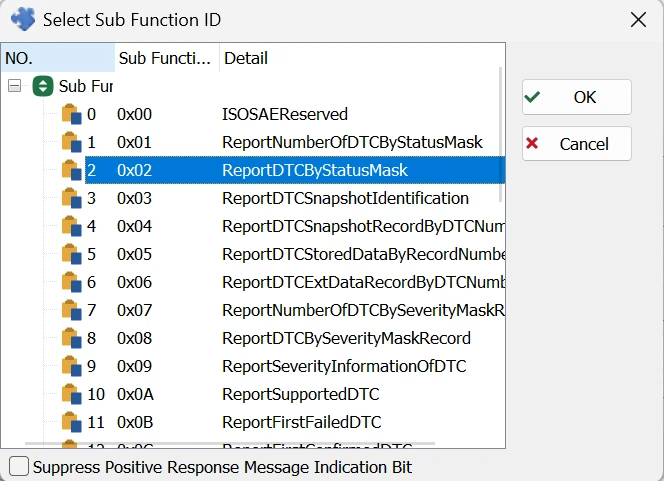
Clicking “…” allows selecting different sub-function IDs corresponding to $19 reporting types. For example, 0x02 is ReportDTCByStatusMask. You can select different sub-function IDs according to different requirements, as shown in Figure 12.
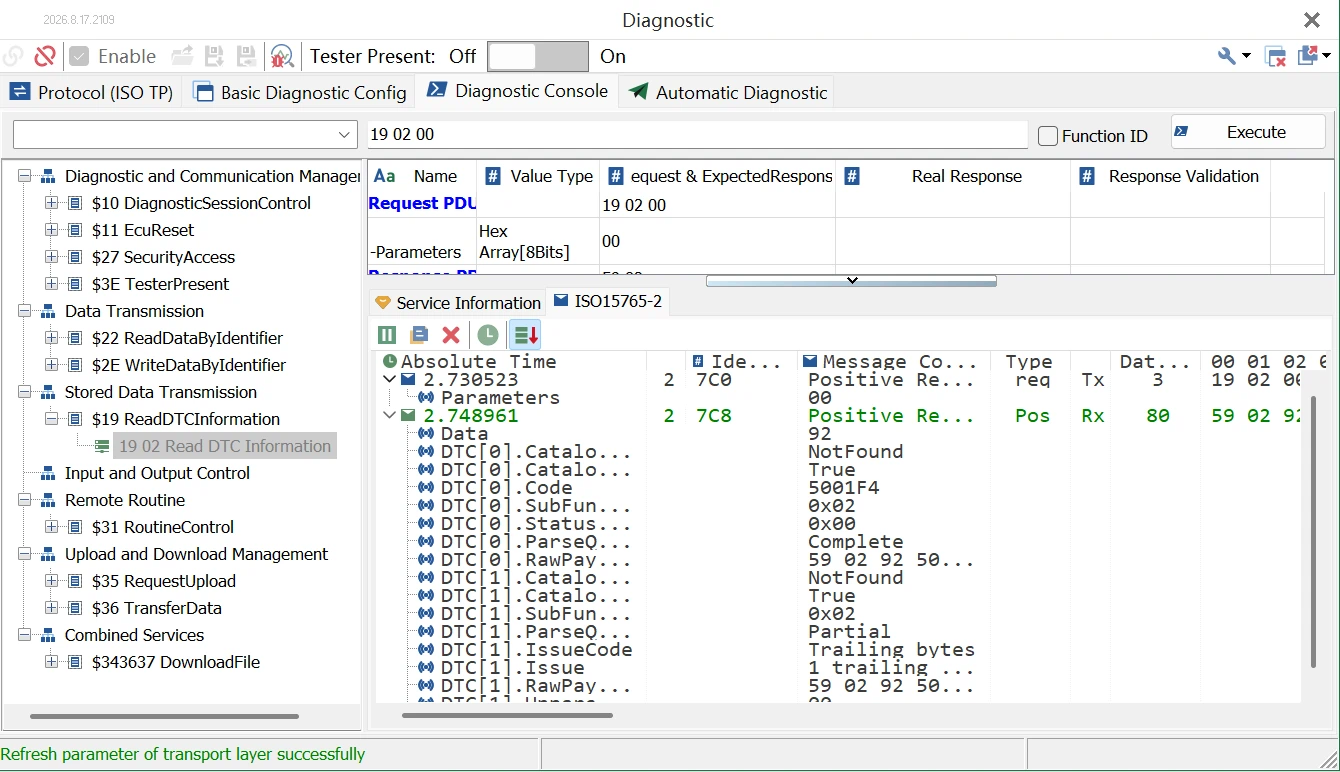
Next, execute the $19 service request in the Diagnostic Console. Select the created $19 service, right-click to execute, and view the request and response of the $19 service in the [ISO15765-2] window, as shown in Figure 13.
At this time, the DTC information read by the 0x19 service of the diagnostic module will be automatically parsed in real time within DTC Analysis, as shown in Figure 14.
2.3.2 Operations for Reading DTC Information in the Database-Based Diagnostic Module
In the Database-based Diagnostic module, after loading the corresponding diagnostic database, the $19 ReadDTCInformation services are usually already pre-defined in the database. Therefore, you only need to select the corresponding $19 service in the Diagnostic Console and execute it. DTC Analysis will automatically parse the corresponding DTC information.
Operation path: DiagnosticDB → Diagnostic Console → Stored Data Transmission → $19 ReadDTCInformation.
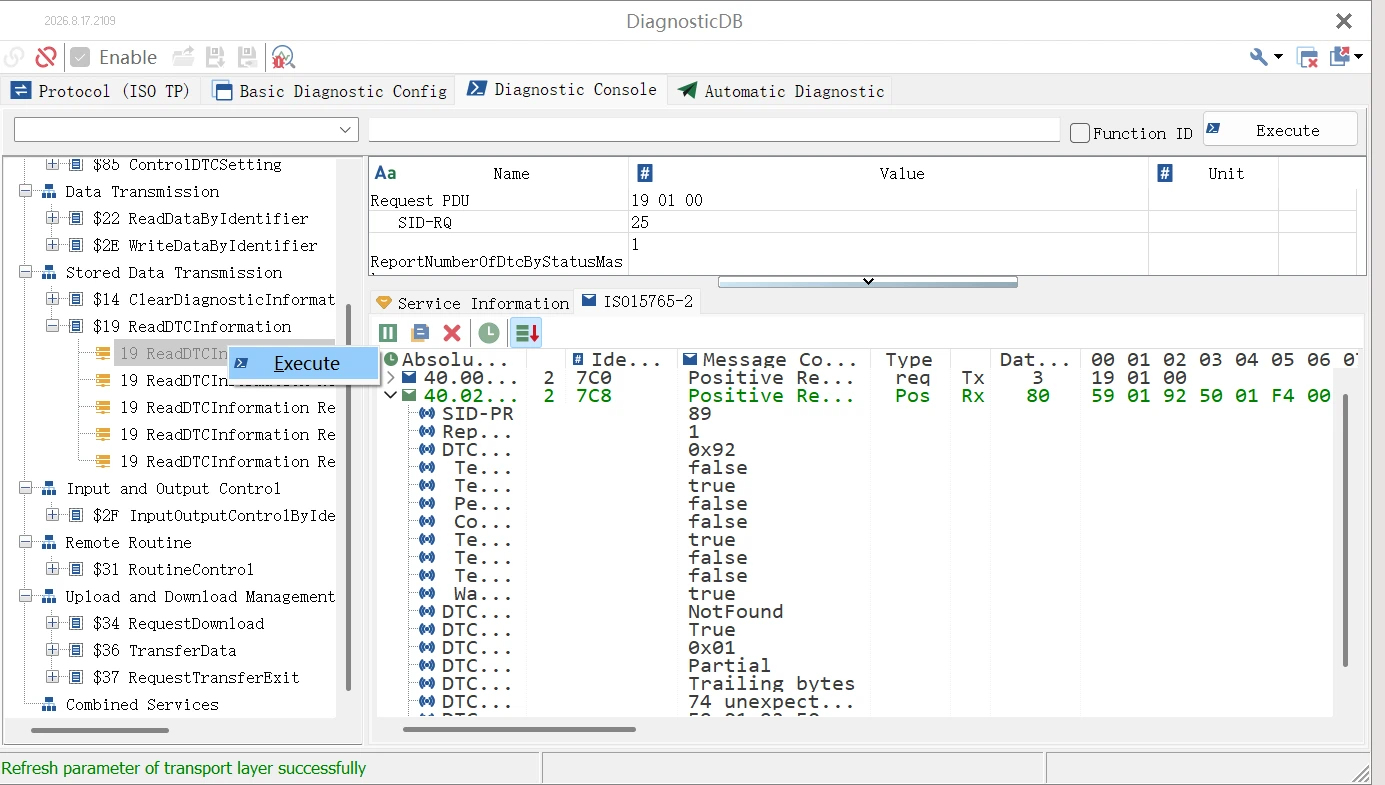
Select the corresponding $19 service, right-click to execute, and view the request and response of the $19 service as well as the detailed DTC parsing in the [ISO15765-2] window, as shown in Figure 15.
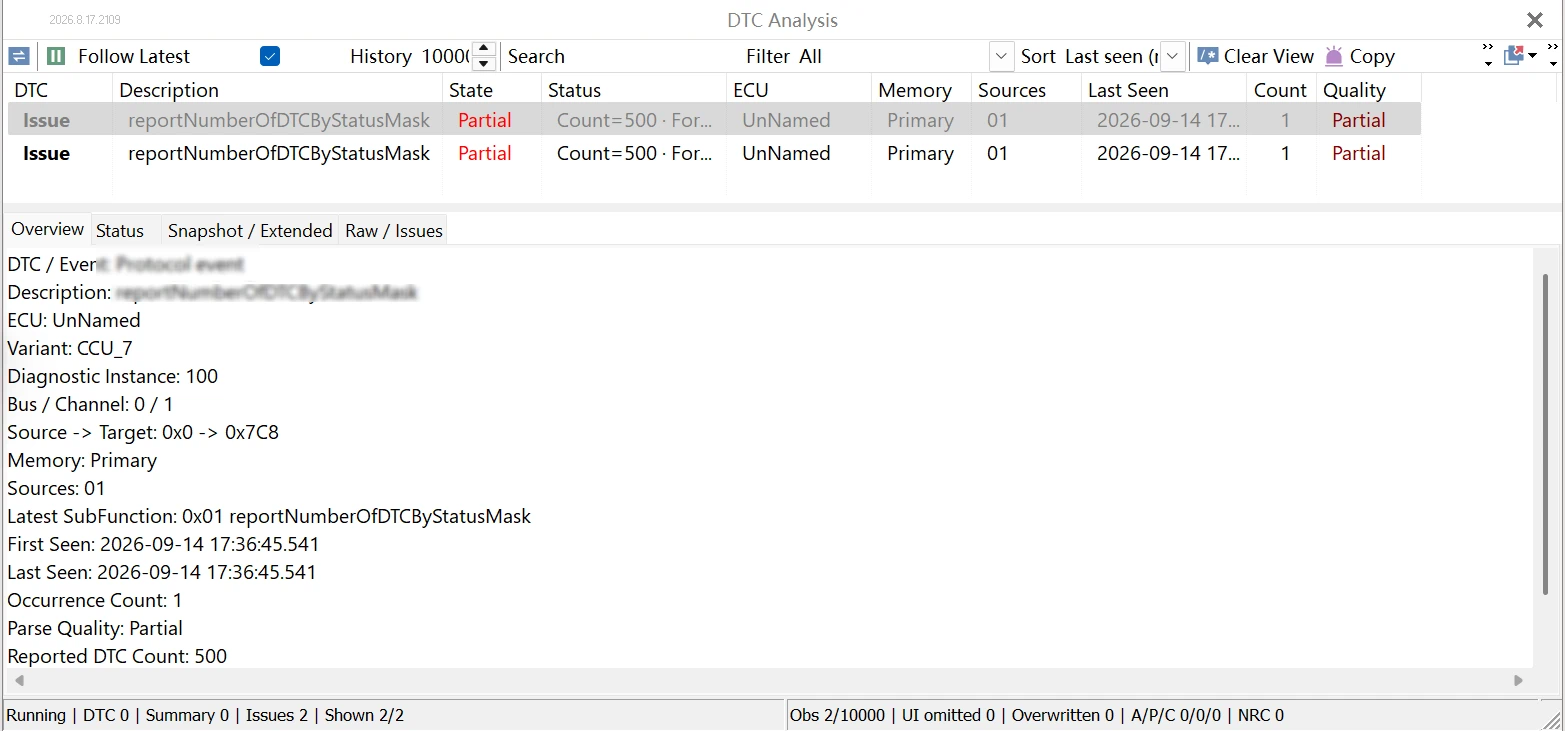
At this point, the DTC information read by the $19 service is automatically parsed simultaneously in DTC Analysis, as shown in Figure 16.
Want to learn more about the TSMaster DTC Analysis and TSMaster’s other diagnostic capabilities, or need help with a specific workflow? Contact our support team or download the latest TSMaster build to get started.
